How to Open Hidden Apps in Samsung: Quick & Easy Guide
Open hidden apps on Samsung quickly and securely. Use Secure Folder, locate hidden files, manage apps efficiently, and keep your device organized and private.
Author: Sujith Grandhi


Open hidden apps on Samsung quickly and securely. Use Secure Folder, locate hidden files, manage apps efficiently, and keep your device organized and private.
Author: Sujith Grandhi

You might hide apps on your Samsung phone to keep personal data private, stay organized, or secure sensitive information. But what if you need to access them again? Knowing how to open hidden apps in Samsung is simple once you know the right steps.
In this quick guide, I’ll walk you through easy methods to find and open hidden apps on your device without any confusion. Let’s get started and reveal those hidden apps in just seconds!
There are plenty of reasons why someone might hide apps on a Samsung phone. Understanding these can help you manage your apps better and keep your device organized:
Knowing why apps are hidden helps you approach them correctly when you want to access or manage them.
Finding hidden apps on a Samsung phone doesn’t have to be complicated. Here are the easiest methods to open them quickly and safely.
One of the simplest ways to open hidden apps in Samsung is through the Settings menu. This method works for apps that were disabled or hidden from the main app list.
Here’s a quick way to find hidden apps on your Samsung device:
This method is quick, easy, and lets you access hidden apps without any extra tools.
Samsung lets you hide apps from the App Drawer to keep your home screen clean and organized. By going into Home screen settings and checking the Hide apps section, you can quickly see which apps are hidden and unhide them. This method is fast, simple, and doesn’t require any extra tools.
Here’s a quick way to uncover hidden apps using your Samsung’s App Drawer:
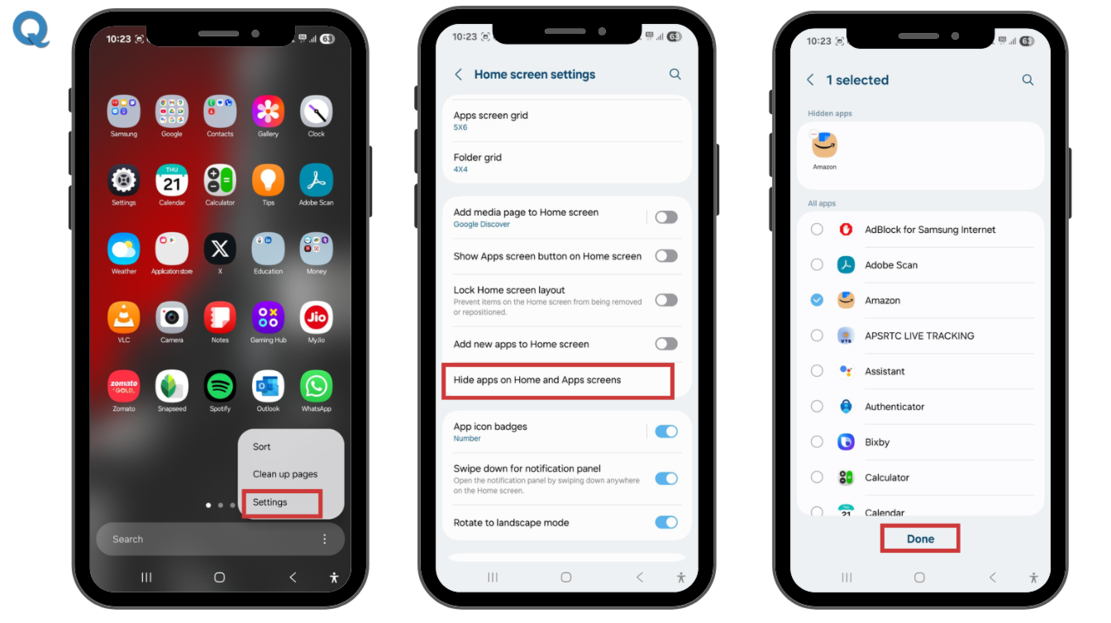
This method is fast, safe, and perfect for apps you use occasionally without changing other settings.
👉 You Might Like This: How to Block Apps on Any Device in Just a Few Easy Steps!
Samsung’s Secure Folder is designed to keep apps and data private. If an app is hidden here, it won’t appear in the regular app list or App Drawer.
How to access hidden apps in Secure Folder:
This method is ideal for sensitive apps like banking, work tools, or personal messaging apps. Samsung’s Secure Folder, built on the Knox security platform, provides a private and encrypted space on Galaxy smartphones. It keeps your apps secure while still allowing quick access when needed, giving you enhanced privacy and peace of mind.
You can quickly access hidden apps on your Samsung device using the search bar or a voice assistant like Bixby or Google Assistant. Even if an app is hidden from the home screen or App Drawer, it will open instantly without changing any settings.
Just say, “Open [App Name]”, and the app will launch instantly. This method is fast, convenient, and perfect for apps you use occasionally, without changing any settings.
If you really care about keeping control on any device, especially as a parent, monitoring is the key. This is where Qoli comes in, a powerful software that can monitor every app, even if it’s hidden, on Samsung or any other device.
But Qoli doesn’t stop at app monitoring. It also gives clear insights into call logs and recordings, tracks live location, sets up geo-fencing, blocks apps, monitors screen activity and text messages, and many more features. It even alerts you if anything unusual happens on the device.
With Qoli, you get complete visibility and control, making it easy to stay informed about every activity on the device, all from a single, reliable platform.
Hidden files on Samsung devices can include photos, videos, documents, or system files that aren’t visible in regular folders. Locating them is easy if you know where to look.
To find hidden files on your Samsung device, follow these simple steps:
This method is quick, safe, and ensures you don’t miss any important content stored on your device. It’s a handy trick for keeping track of all files, even the ones not immediately visible.
Keeping hidden apps under control is important for privacy, organization, and security. Here are some simple tips to manage them effectively:
Following these tips helps you maintain control, protect sensitive data, and keep your device organized without any hassle.
Apps on your Samsung device may be hidden for several reasons, including privacy, organization, or security. Knowing how to open hidden apps in Samsung ensures you can access these apps quickly and efficiently whenever needed.
There are several ways to find hidden apps in your samsung devices, each method is simple and effective, letting you manage your apps without confusion. Regularly checking hidden apps, organizing them by usage, and keeping track of changes can help you maintain a clutter-free and well-organized device.
By following the steps and tips shared in this guide, you’ll always have full control over your Samsung apps. Next time, finding hidden apps on your Samsung device won’t be tough, this blog has got your back!
Thanks for reading!

Last chance! Get 30% off all Qoli features before this limited-time deal disappears forever.